A recent installation attempt for ESXi on Apple Mac Mini (2018) met with a few hurdles.
- ESXi Installation stops at 81%. Reboot does not accept password. ( Cause : Network device not detected and configuration was not completed)
- Even after completion of ESXi installation, the onboard network card is not recognised. (No Mac Mini 2018 drivers in the default installation ISO).
- Use of Internal SSD storage is not supported by Apple – this is a known Apple problem. (Unsupported by Apple)
See VMware Hardware Compatibility List for Apple
Most of the steps below have been adapted from Virtually Ghetto link detailing a fix to these originally seen with ESXi 6.7
After a helpful chat with VMware support; who kindly pointed me to the blog above , I have put together an updated version for 7.0b which has almost similar steps allowing for the now certified VMware driver.
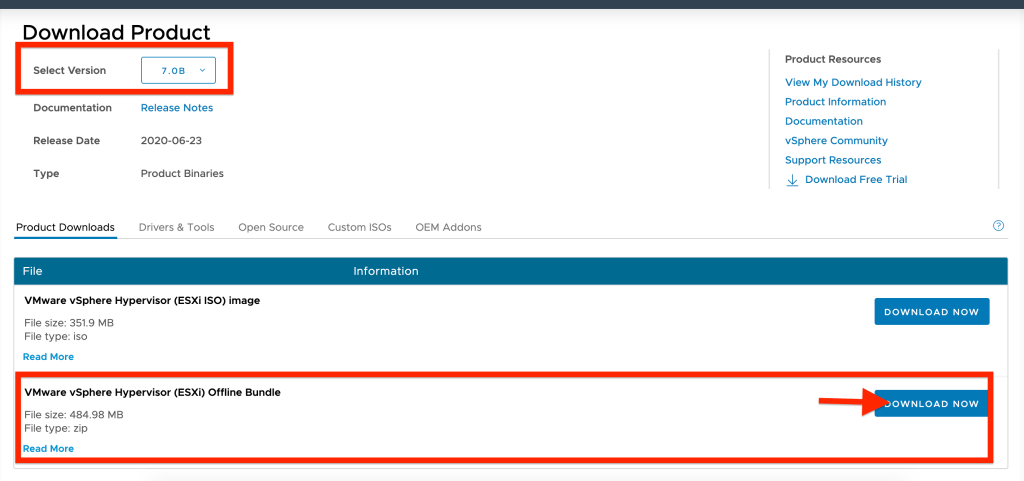
This downloads a file named “VMware-ESXi-7.0b-16324942-depot.zip”.
2. Getting the network drivers
2.1 Download the AQC100-B1 network driver from My VMware
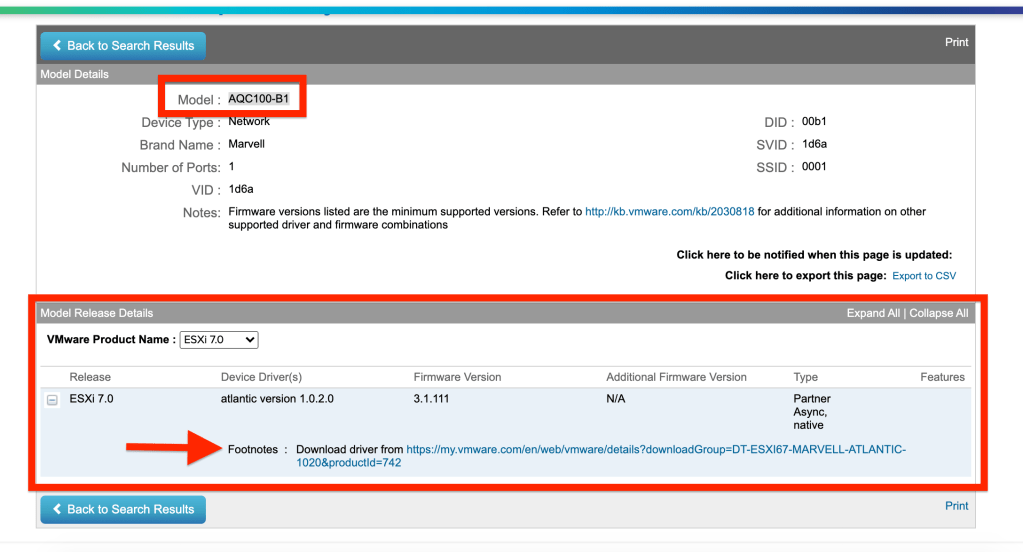
2.2 VMware prompts you to download the driver for 6.7 which is apparently the same for 7.0b.
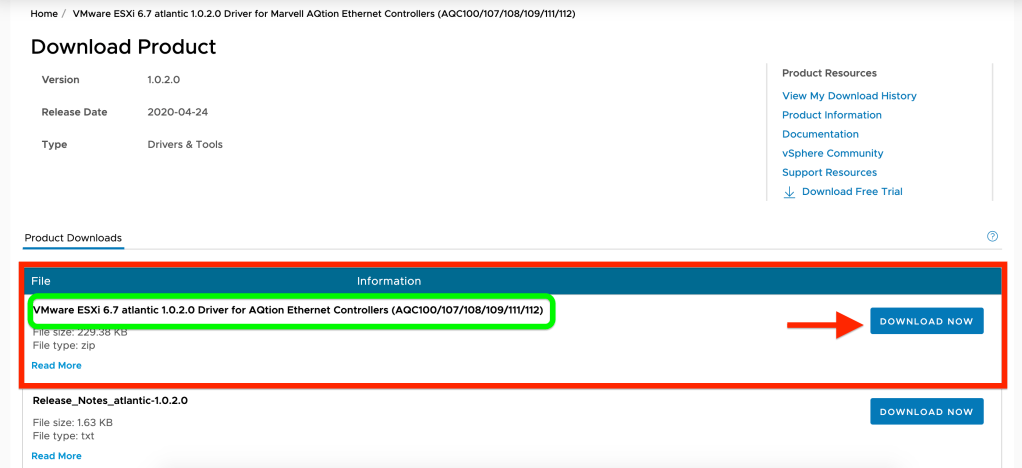
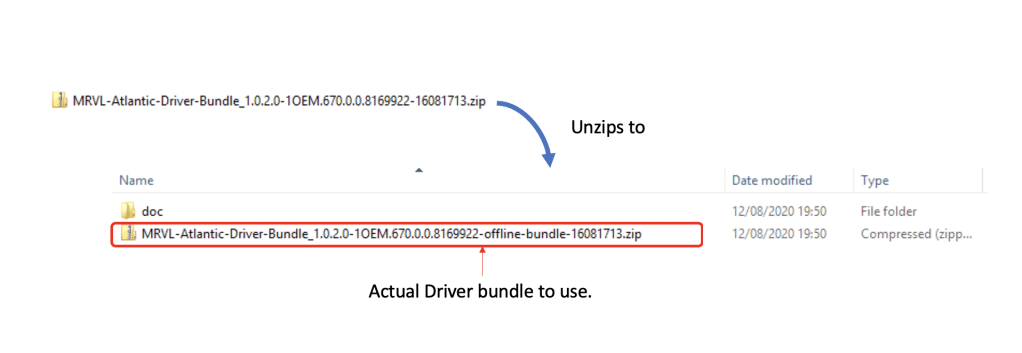
A file “MRVL-Atlantic-Driver-Bundle_1.0.2.0-1OEM.670.0.0.8169922-16081713.zip” would be downloaded. Note that this is not the file to import. If you import this ; you will get errors.
2.4 Unzip the above file – you will find another zip file called ‘MRVL-Atlantic-Driver-Bundle_1.0.2.0-1OEM.670.0.0.8169922-offline-bundle-16081713.zip’ within this. This is the file to import later.
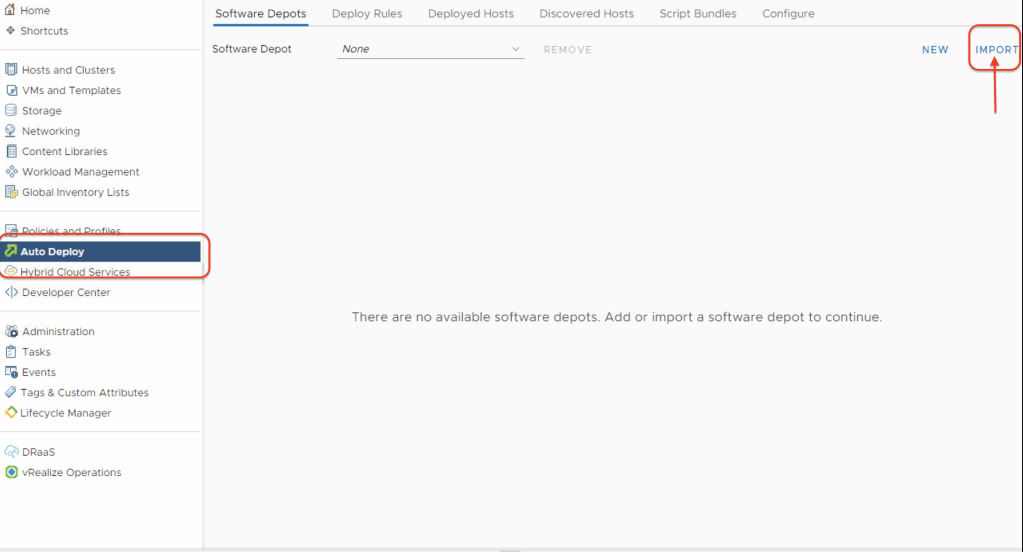
3. Login to your vCenter appliance (7.0b) and enable the Image Builder within ‘Auto Deploy’. Once enabled; select ‘Import’. This step imports the ESXi offline bundle from Step. 1

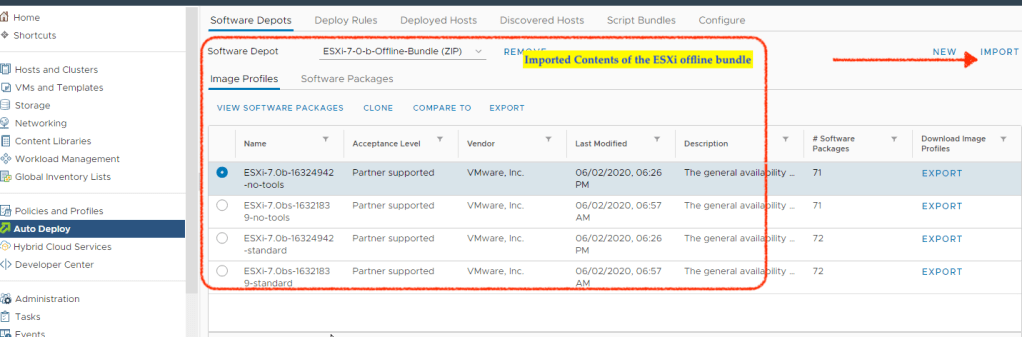
3.1 Upon successful completion of the import; following will be seen. Click on the import button again to import the network driver next.
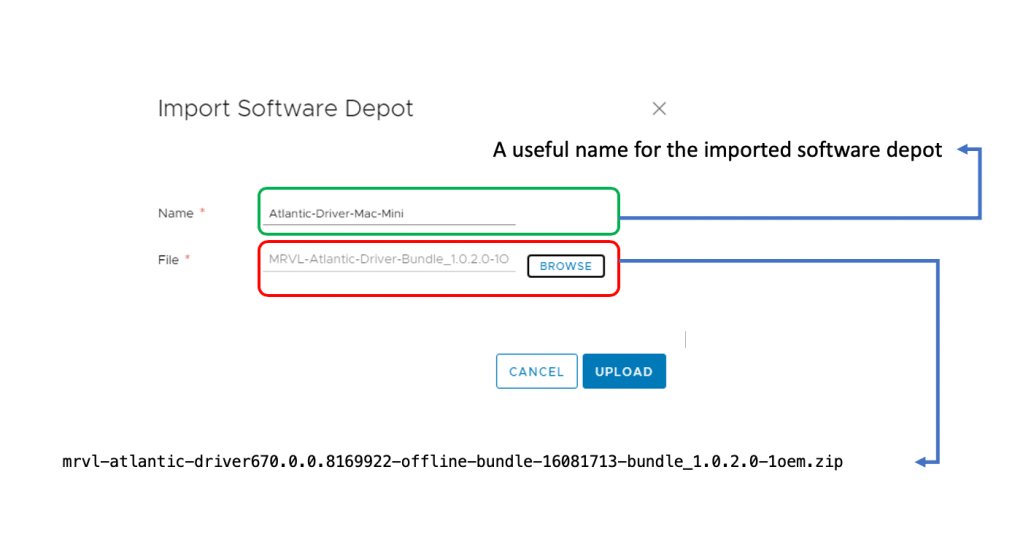
3.2Select the network driver downloaded in step 2.1 and unziped in step 2.4 called “MRVL-Atlantic-Driver-Bundle_1.0.2.0-1OEM.670.0.0.8169922-offline-bundle-16081713.zip”

3.3 Name the software depot / imported driver something meaningful.
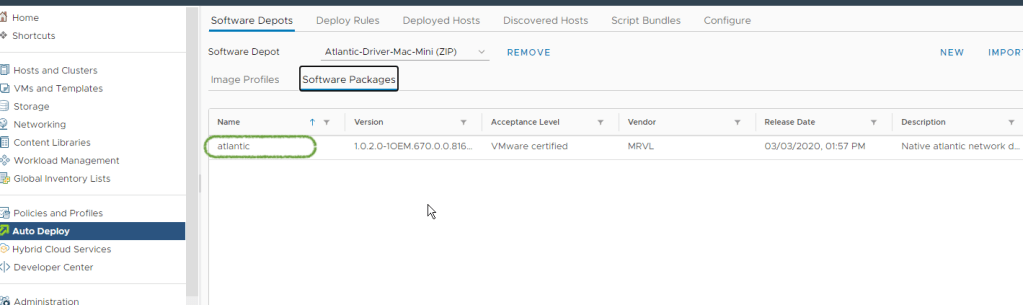
3.4Once import is completely ; please select the Software Depot where you have just imported the driver and click on the ‘Software Packages’ tab. to verify the contents as below . The Driver name should be visible as ‘atlantic’ and this has been certified by VMware.
3.5 It is now time to create a new Custom Depot into which we can import the ESXi image combined with the network driver. Click on ‘New’ and create a new Custom Depot.

3.6 Give the deport a name and click add.

3.7 The newly created custom depot would of course; be empty as below.

3.8 Change the software depot to the ESXi depot created in step 3.4 .

4 Click on Image Profiles and select the image profile “ESXi-7.0b-16324942-no-tools” which is usually the first one,. Click “Clone”
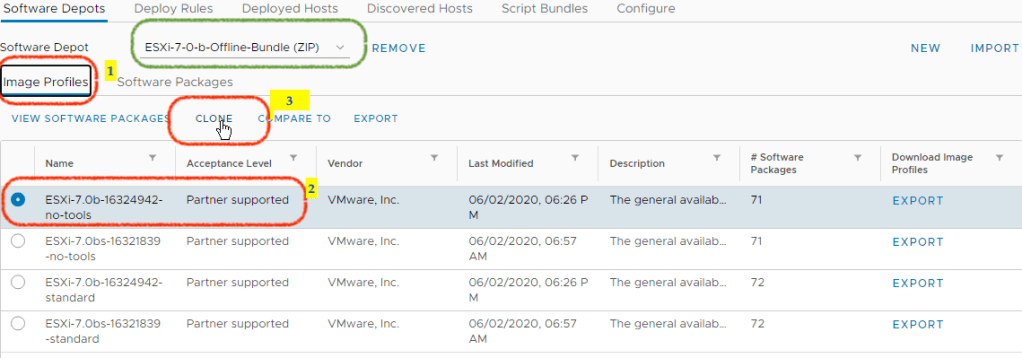
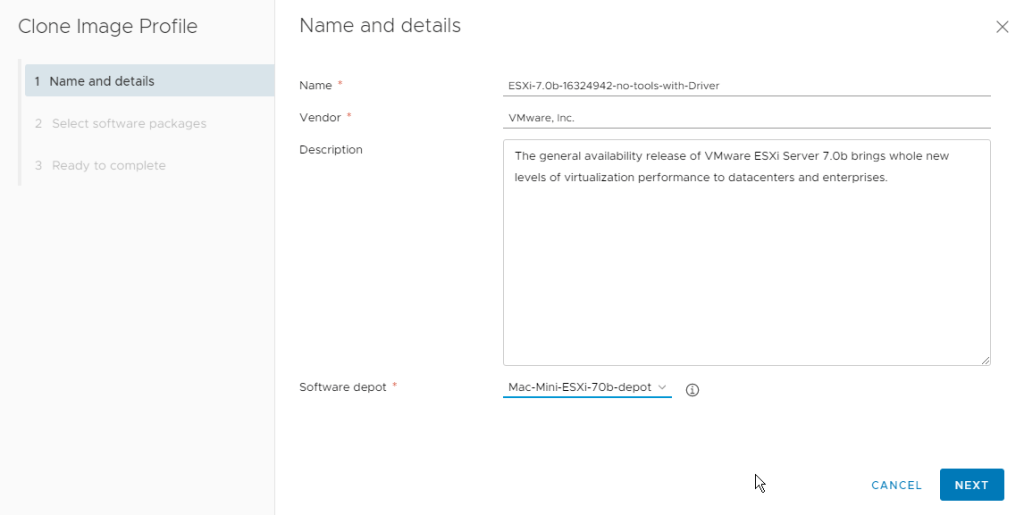
4.1 Progress through the windows as below – the aim is to clone the ESXi image and combine this with the driver. The destination software depot should be your custom depot created in step
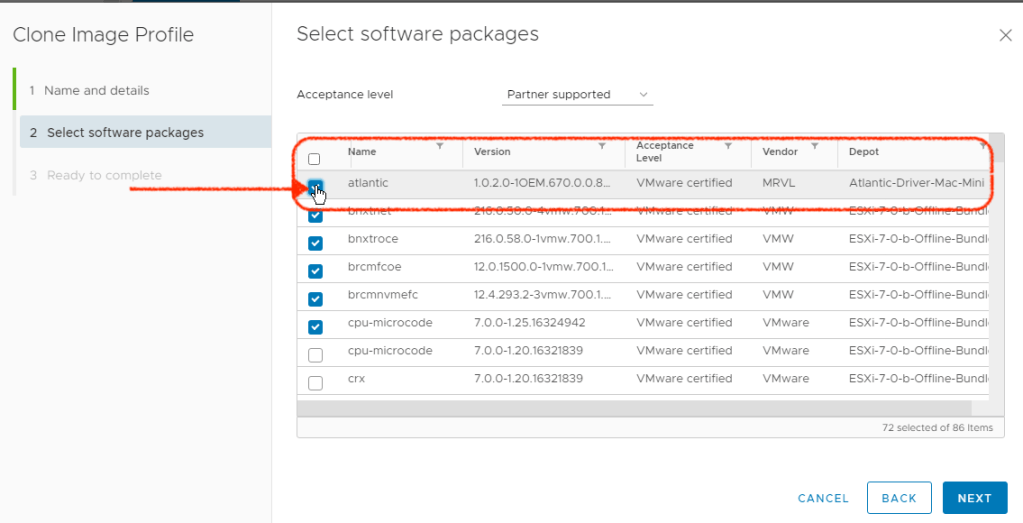
4.2 Ensure that you have the driver ‘atlantic’ selected before clicking next. All the rest should be left at defaults.
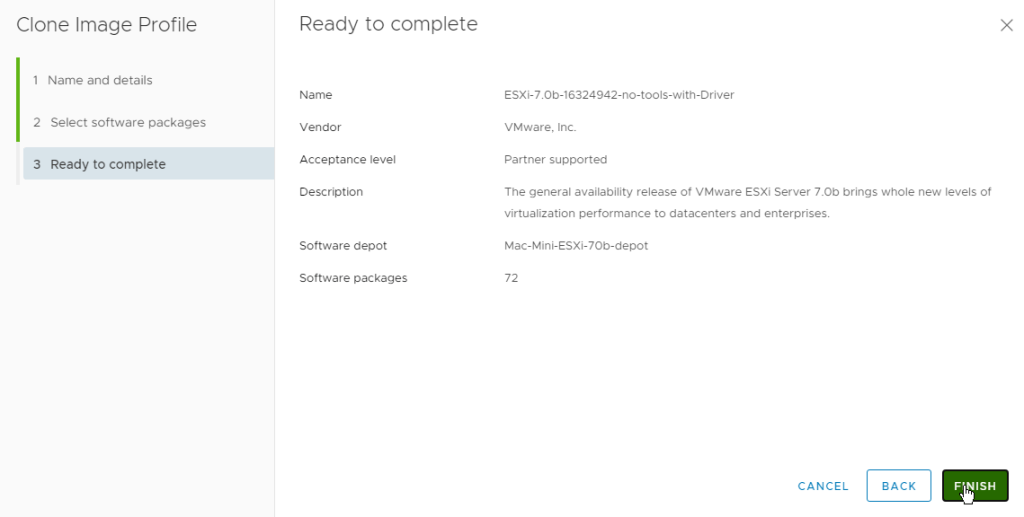
4.3 Verify that the Atlantic driver has been bundles into the ESXi installation package.

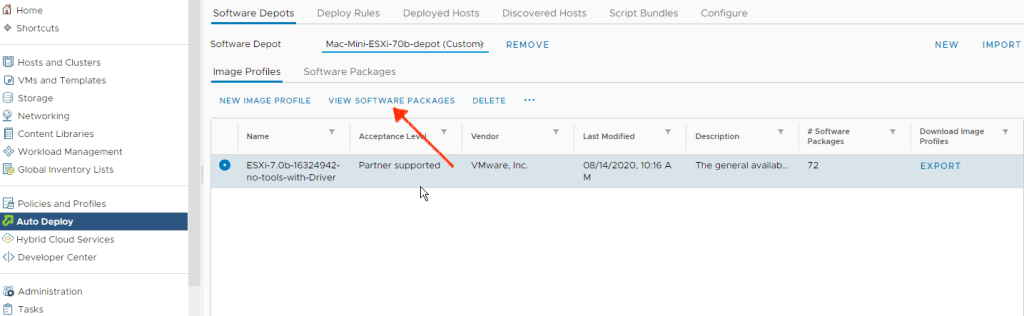
4.4
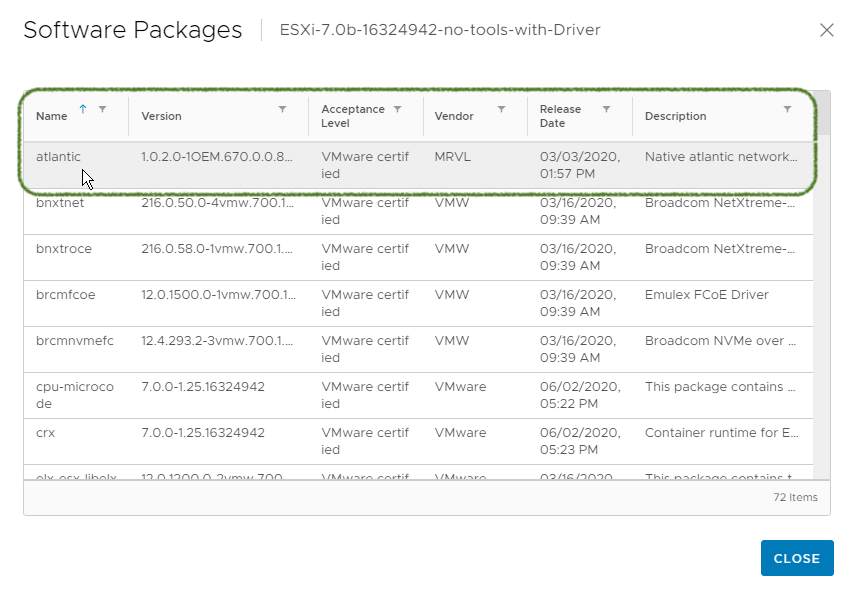
5. Close the above window and click on ‘Export ‘ . This creates an Imnage Profile within vCenter ready for download in the next step.
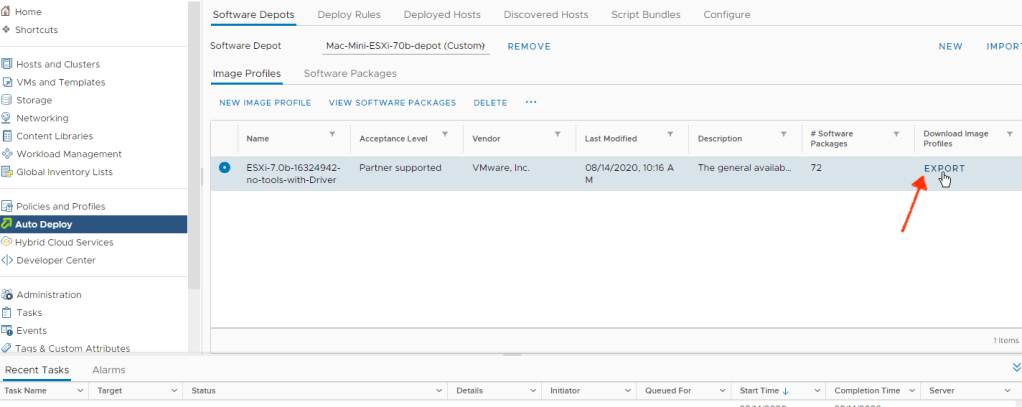
5.1
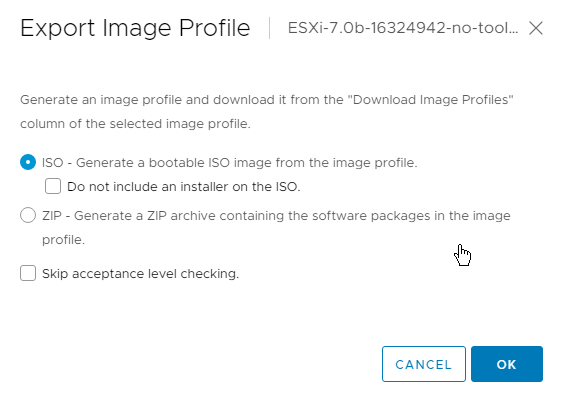
5.2 Exported ISO would have a guiid type name – change this if required.


The exported ISO is now ready to be written to a bootable USB drive

6.0 I used Rufus to create a bootable USB drive with the settings below – with standard options. No extra settings was required.
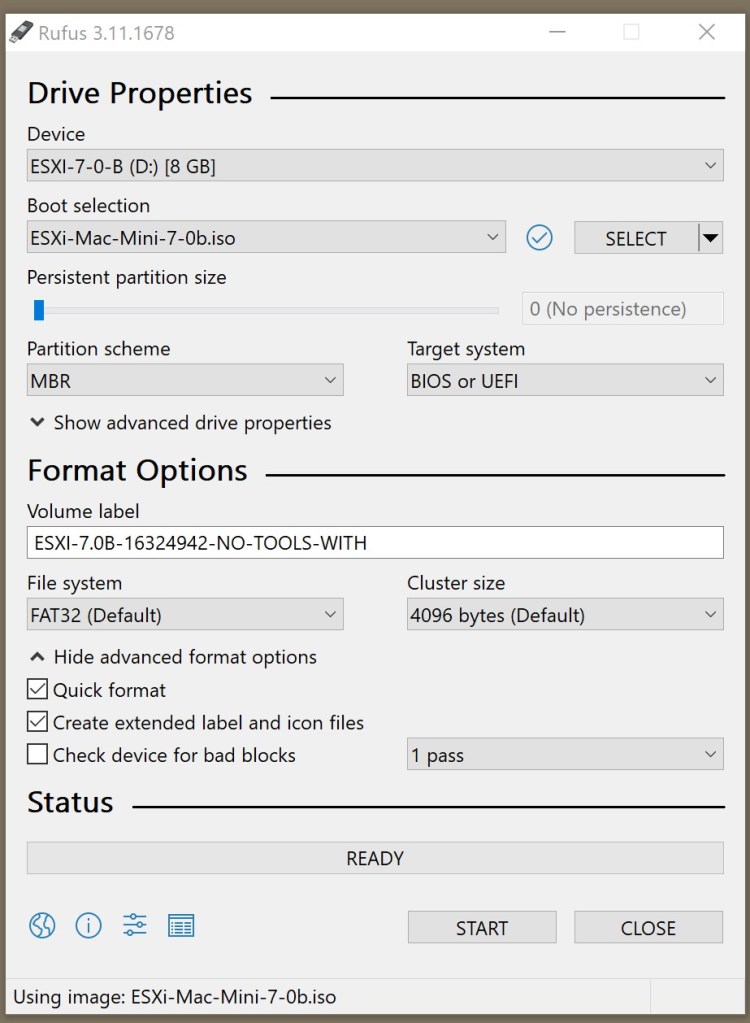
This completes the process of preparing the USB installation drive which includes the network drivers Mac Mini 2018. Note that this can be reused to install ESXi 7 on any platform.
A follow up post about the actual installation is in the works. Hope this is helpful.

 anjanesh babu